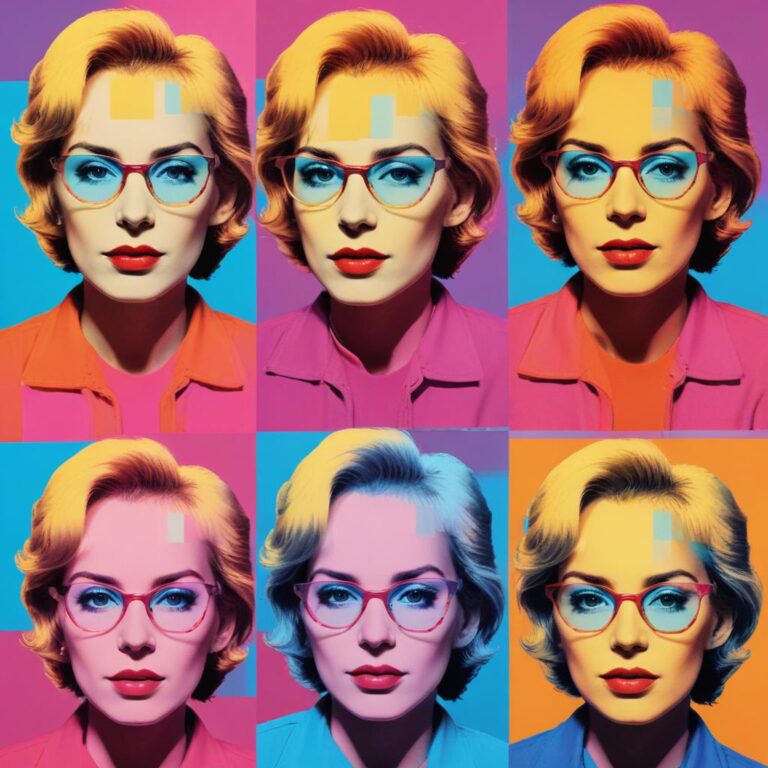
Creative Recovery: How to Fix Overexposed Photos with Artistic Grading and Stand Out
You’ve tried the basic fixes—the highlights slider, the auto button, the usual tricks—but your overexposed photos still look, well, boring. Here’s the thing: sometimes “fixing” a photo to look perfectly normal isn’t the goal. Sometimes you want drama, emotion, and a style that makes people stop scrolling and say, “Wow, how did they do that?” That’s where artistic grading comes in. Instead of just correcting your overexposed mistakes, you can transform them into intentional, stunning works of art. Think moody blue tones, warm golden glows, or even dreamy pastels that turn a blown-out sky into a creative statement. This guide is for the rebels, the artists, and anyone who wants their photos to stand out in a sea of sameness. We’re going to show you how to embrace overexposure and use color grading to create magic.
TL;DR
Overexposed photos don’t have to be disasters. With artistic color grading, you can turn blown-out highlights into beautiful, intentional elements of your image. Instead of just trying to “fix” the brightness, you add creative colors to the bright areas, shadows, and midtones to create mood and style. This technique, called color grading, is used by professional filmmakers and photographers to give their work a unique look. You can add cool blues to a white sky for a cinematic feel, warm golds to highlights for a dreamy sunset vibe, or soft pinks for a romantic aesthetic. Using free apps like Lightroom Mobile and Snapseed, you can master these techniques today and turn your so-called mistakes into your best work yet.
Key Takeaways
- Artistic Grading is Different: Instead of correcting exposure, you’re adding creative colors to your highlights, shadows, and midtones .
- Embrace the Blowout: Sometimes a bright sky can become a beautiful canvas for color .
- Split Toning is Your Friend: This classic technique lets you add one color to the highlights and another to the shadows for incredible depth .
- Curves Tool for Pros: For more control, the curves tool lets you precisely adjust colors at different brightness levels .
- Match the Mood: Cool blues create calm, dramatic feelings. Warm golds and pinks create cozy, romantic vibes .
- Free Apps Do It All: You don’t need expensive software. Lightroom Mobile and Snapseed have powerful color grading tools .
What is Artistic Grading and Why Should You Care?
I just want my photos to look nice. Why would I add weird colors to them?
Think about your favorite movies. Think about the last time you watched a film that made you feel something deeply. Chances are, the colors played a huge role in that feeling. Action movies often have cool, steel-blue tones. Romantic comedies are warm and golden. Horror films are greenish and cold. That’s color grading, and it’s one of the most powerful storytelling tools in existence .
When you apply artistic grading to your overexposed photos, you’re doing the same thing. You’re not just fixing a technical problem. You’re telling your viewer how to feel. That white, boring sky? You can turn it into a dreamy cyan blue that feels calm and peaceful. You can turn it into a warm peach that feels like a happy memory. You can turn it into a moody purple that feels mysterious and deep .
Artistic grading takes your photo from “here’s what I saw” to “here’s how I felt.” And that’s what makes people connect with your images.
The Magic of Split Toning: Two Colors, Infinite Moods
What’s the easiest way to start adding artistic colors to my overexposed photos?
The simplest and most powerful tool for beginners is called split toning. It might sound fancy, but it’s actually very simple. Split toning lets you add one color to the bright parts of your photo (the highlights) and a different color to the dark parts (the shadows) .
Think of it like this: you’re painting with two colors. Maybe you add a warm orange to the highlights (your sky, bright areas) and a cool blue to the shadows (the ground, dark areas). This creates beautiful contrast and depth. It’s why so many movie posters and professional photos have that “cinematic” look .
For overexposed photos, split toning is a gift. That white sky that has no detail? It’s now a blank canvas. You can add any color you want to it. You can make it a soft pink, a dreamy lavender, or a dramatic teal. The overexposure actually helps because you have a clean slate to work with .
How to do it in Lightroom Mobile:
- Open your photo and go to the “Color” section.
- Look for “Split Toning” (it might be under “Effects” or “Color Grading” in some versions).
- You’ll see two color wheels or sliders: one for Highlights, one for Shadows.
- For the Highlights, choose a color. Drag the slider to add that color to your bright areas. Watch your sky transform.
- For the Shadows, choose a different color. Add it to the dark parts.
- Adjust the “Balance” slider to decide which color is stronger.
In seconds, you’ve created a custom, artistic look that turns your overexposed photo into a statement piece.
Popular Artistic Looks You Can Create Right Now
What are some cool color combinations that actually look good? I don’t want my photos to look weird.
Great question! Here are some tried-and-true color combinations that photographers and filmmakers use all the time. These are guaranteed to look artistic and professional.
The Teal and Orange Look (Cinematic Blockbuster)
This is the most famous look in Hollywood. You’ve seen it in every action movie and blockbuster for the last decade. It adds a teal or blue color to the shadows and an orange or peach color to the highlights .
- Why it works: Orange and teal are opposite on the color wheel, so they create amazing contrast. Skin tones naturally fall into the orange range, so people look great. The teal shadows make everything feel dramatic and cool .
- For overexposed photos: Your white sky becomes a beautiful teal or cyan. Your ground gets a warm orange glow. Instant movie magic.
The Gold and Blue Look (Dreamy and Warm)
This is softer than teal and orange. It adds a warm, golden color to the highlights and a soft, muted blue to the shadows .
- Why it works: It feels like golden hour, that magical time just before sunset. It’s romantic, warm, and inviting .
- For overexposed photos: Your blown-out sky turns into a dreamy gold. Dark areas become soft blue. Perfect for portraits, weddings, and travel photos.
The Pastel Dream (Soft and Romantic)
This look uses soft, desaturated colors like lavender, mint, peach, and blush pink. It’s hugely popular on Instagram and in fashion photography .
- Why it works: It’s gentle, calming, and feels like a soft dream. It makes everything look delicate and beautiful .
- For overexposed photos: That white sky is the perfect place for a soft pink or lavender wash. It looks intentional and artistic, not like a mistake.
The Moody Blue (Cool and Dramatic)
This look cools down the entire image, adding blue to both highlights and shadows. It feels cold, dramatic, and serious .
- Why it works: Blue is associated with calm, sadness, and depth. It gives photos an artistic, thoughtful feeling .
- For overexposed photos: Your bright sky becomes a deep, dramatic blue. It hides the lack of detail and creates a cohesive mood.
Advanced Tool: Using Curves for Ultimate Control
Okay, I’m ready to level up. What tool do the pros use for color grading?
If split toning is a paintbrush, the curves tool is a surgeon’s scalpel. It gives you incredibly precise control over colors and brightness at every single level of your photo. Don’t be scared of it—once you understand the basics, it’s actually fun .
In apps like Lightroom and Snapseed, the curves tool looks like a diagonal line on a graph. The bottom left is your shadows (dark areas). The top right is your highlights (bright areas). You can click on the line and drag it to adjust brightness .
But here’s the magic: you can also adjust individual color channels. Most apps have separate curves for Red, Green, and Blue. By adjusting these, you can add colors to specific brightness ranges with surgical precision .
A simple curves trick for overexposed photos:
- Open the curves tool in Lightroom or Snapseed.
- Look for the channel selector and choose the “Blue” channel.
- Click on the top right of the line (the highlights area) and drag it slightly up. This adds blue to your bright sky.
- Click on the bottom left (the shadows area) and drag it slightly down. This adds a little yellow to your shadows (since removing blue adds its opposite, yellow).
- Play with the red and green channels to fine-tune.
It takes practice, but curves give you a level of control that split toning can’t match. It’s how the pros get those perfect, custom looks.
Your Artistic Grading Cheat Sheet
Here’s a quick reference table for creating artistic looks from overexposed photos.
| Artistic Look | Highlights Color | Shadows Color | Best For | Feeling |
|---|---|---|---|---|
| Teal and Orange | Orange / Peach | Teal / Blue | Landscapes, portraits, action shots | Cinematic, dramatic, blockbuster vibe |
| Gold and Blue | Gold / Warm Yellow | Soft Blue | Sunsets, weddings, travel | Dreamy, warm, romantic |
| Pastel Dream | Pink / Lavender | Mint / Peach | Fashion, food, lifestyle | Soft, gentle, Instagram-worthy |
| Moody Blue | Cool Blue | Deep Blue | Cityscapes, rainy days, portraits | Calm, dramatic, thoughtful |
| Vintage Fade | Warm Yellow | Muted Green | Street photography, nostalgia | Old film, memory, retro |
Step-by-Step: Create Your First Artistic Grade
Walk me through it. I have an overexposed photo and I want to make it artistic right now.
Let’s do this together using Lightroom Mobile. Don’t worry if you have a different app—the ideas are the same.
Step 1: Fix the Basics First
Before you get artistic, do a quick basic fix. Drag the Highlights slider down to bring back whatever sky detail you can. Drag the Shadows slider up slightly so you can see the ground. This gives you a clean foundation .
Step 2: Go to Color Grading or Split Toning
Find the color grading tools. In Lightroom, it’s under “Color” then “Color Grade.” In Snapseed, look for “Curves” or “White Balance” for basic color shifts.
Step 3: Choose Your Look
Pick a look from the table above. Let’s start with Gold and Blue.
- For the Highlights, choose a warm gold or peach color. Add enough so you can see it in the sky and bright areas .
- For the Shadows, choose a soft blue. Add it to the dark parts of your photo .
Step 4: Adjust the Balance
Most split toning tools have a Balance slider. Drag it left to make the shadows color stronger. Drag it right to make the highlights color stronger. Find a balance that looks natural and beautiful .
Step 5: Fine-Tune with Other Tools
Now that you have your artistic colors, you might need to adjust exposure or contrast again. Add a little Contrast to make it pop. Add a touch of Saturation if the colors feel too weak. Remove some Saturation if they feel too strong .
Step 6: Save and Compare
Save your photo and hold down to see the before. You’ll be amazed. You took a boring, overexposed mess and turned it into art.
Frequently Asked Questions (FAQ)
1. Is color grading the same as using a filter?
Not exactly. Filters are one-click presets that apply a bunch of changes at once. Color grading is the specific art of adding colors to highlights, shadows, and midtones. Think of filters as a quick meal and color grading as cooking from scratch. Both can be delicious, but grading gives you more control and a unique result .
2. Can I do artistic grading in free apps?
Absolutely! Lightroom Mobile has a powerful free version with full color grading tools. Snapseed has curves and white balance tools that let you add creative colors. You don’t need to spend a dime .
3. What if I add too much color and my photo looks fake?
That’s a common fear, and it’s easy to fix. The secret is subtlety. Most professional color grading is barely noticeable to the untrained eye. Start with small amounts of color—just a hint. You can always add more. If you go too far, just dial it back. Less is often more .
4. Can I save my artistic grade and use it on other photos?
Yes! This is the secret to a consistent Instagram feed. In Lightroom Mobile, after you create a look you love, tap the three dots and “Create Preset.” Name it. Now, for every new photo, you just tap that preset and all your artistic colors are applied instantly. Your whole feed will have a cohesive, professional vibe .
5. My photo is overexposed in the sky but also has a person. Will color grading make the person look weird?
Not if you do it right. The beauty of split toning and curves is that they affect the whole image, but because you’re adding colors to specific brightness ranges, skin tones usually stay looking natural, especially if you’re using warm colors in the highlights. The Teal and Orange look was literally designed to make skin look good while giving the background a cool tone .
6. What’s the biggest mistake beginners make with artistic grading?
Being afraid to experiment! The worst that can happen is you don’t like it and you undo it. Try wild combinations. Put pink in the shadows and green in the highlights. See what happens. Sometimes accidents become your new favorite style. Photography is supposed to be fun, so play .
You now have the tools to turn your biggest photography mistakes into your greatest artistic triumphs. The next time you get a photo with a blown-out sky or washed-out highlights, don’t reach for the delete button. Reach for the color grading tools. Ask yourself: what feeling do I want this photo to have? Then paint that feeling with color. Your photos are about to become unforgettable.