AI Object Removal: Erase Unwanted Elements Perfectly
You finally get the perfect group photo, and there’s a random stranger photobombing in the background. Sound familiar?
It’s the classic photo headache. Whether it’s a trash can in your landscape, a power line across a beautiful sky, or an unexpected photo crasher, unwanted objects can ruin a great shot. In the past, fixing this required serious Photoshop skills. Today, AI object removal makes it as easy as scribbling and clicking. This guide will show you how to clean up your photos like a pro.
How Does AI Object Removal Actually Work?
Think of it like this: old-school cloning required you to manually copy and paste “good” pixels over the “bad” ones. It was tedious and easy to spot.
AI is different. It doesn’t just copy; it invents. When you tell the AI to remove an object, it analyzes the surrounding area—the textures, colors, and patterns—and intelligently generates new pixels that blend in perfectly. It’s like having a super-smart artist fill in the gaps based on the rest of the painting.
The Magic Behind the Scenes
The AI uses something called a neural network, trained on millions of images. It learns what “makes sense” in a scene.
- It understands context: Remove a lamppost from a grassy field, and the AI knows to generate more grass and dirt, not water or brick.
- It matches patterns: If you delete something from a brick wall, the AI will continue the brick pattern and mortar lines seamlessly.
- It handles light and shadow: The best AI tools maintain the correct lighting, so the filled area doesn’t look like a flat, pasted-on patch.
What Can You Realistically Remove?
The results can feel like magic, but knowing an AI tool’s strengths helps you get the best outcome.
1. Clean Up Nature and Landscapes
This is where AI excels. Natural scenes have organic, repeating patterns that AI is great at mimicking.
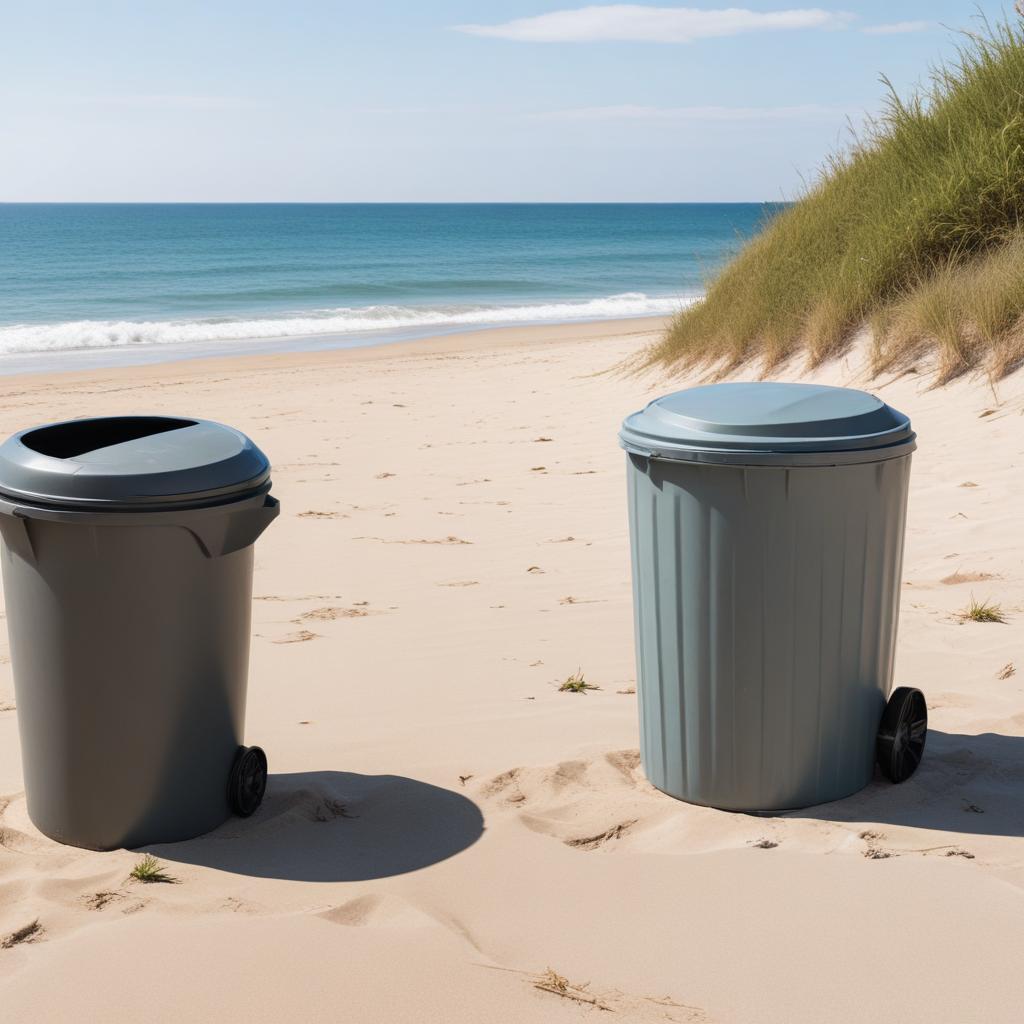
- Tourists and People: Clear a crowded monument or beach to get that serene, empty shot.
- Power Lines and Signs: Declutter the skyline of your cityscape or natural vista.
- Litter and Debris: Instantly tidy up a park scene or your backyard before you share it.
2. Perfect Your Personal and Product Photos
For portraits, product shots, or real estate, cleanliness is key.
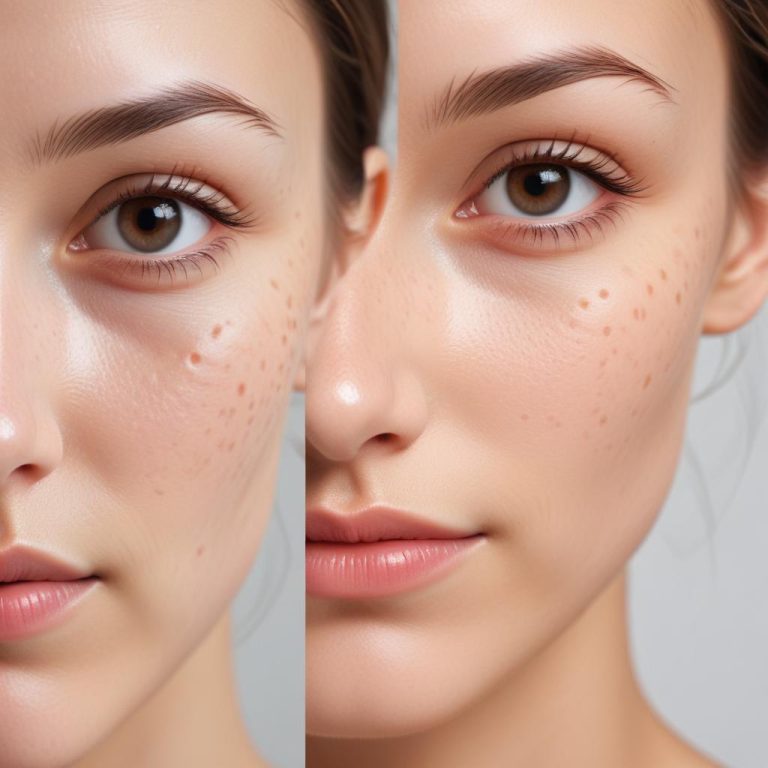
- Skin Blemishes: While dedicated portrait tools exist, many AI removers can quickly zap a temporary pimple or scar.
- Cords and Clutter: Remove distracting charger cords from a product photo or stray toys from a living room picture.
- Branding and Logos: Need to remove a competitor’s logo from a background object in your shot? A careful AI removal can handle it.
- “The goal isn’t to create a fake world, but to remove the distractions that keep people from seeing the beauty of the real one.”
Top Tools for a Clean Slate
From built-in phone features to powerful desktop software, you have amazing options. Your choice depends on how complex your job is.
| Tool Type | Best For | Difficulty | Cost & Examples |
|---|---|---|---|
| Phone App AI | Quick fixes on the go, simple objects on plain backgrounds. | Very Easy | Often free (e.g., Google Photos “Magic Eraser,” Snapseed) |
| Web-Based Editors | Good balance of power and ease; no software to install. | Easy | Freemium (e.g., Canva, Pixlr, Photoroom) |
| Desktop Software AI | Complex jobs, highest quality, and batch processing. | Moderate | Subscription (e.g., Adobe Photoshop “Generative Fill,” Luminar Neo) |
Pro Tip: Always zoom in to 100% after removing an object. Check for blurry areas, strange repeating patterns, or mismatched colors that give away the edit.
You might wonder, just how effective is this technology? The chart below shows the success rate users report when trying to remove different types of unwanted elements with modern AI tools.
Your Foolproof 4-Step Removal Process
Getting a perfect result is all about technique. Follow these steps.
- Choose the Right Tool for the Job: Is the object on a busy background? Use a more powerful editor like a web or desktop tool. Is it a simple spot on a clear sky? Your phone app will nail it.
- Select Precisely: Most tools have a brush or lasso. Take an extra second to carefully mark the object. Don’t be sloppy—selecting a little bit of the clean background helps the AI understand what to replace it with.
- Let the AI Work and Assess: Hit “Erase” or “Generate.” The first result is often great, but don’t just accept it. Look for tell-tale “AI blur” or weird textures.
- Refine if Needed: If it’s not perfect, undo and try again. Sometimes making your selection slightly larger or smaller changes the result. Many tools let you give a text prompt (e.g., “grassy ground”) to guide the AI.
Frequently Asked Questions
Is it ethical to remove people from photos?
It depends on the story. Removing a stranger for a cleaner landscape is generally fine. Altering historical or journalistic photos is not. Use your best judgment about truth and context.
Why does my edit look blurry or weird?
The AI struggled. This often happens with complex patterns (like a knitted sweater) or objects covering critical edges. Try a more precise selection or a more advanced tool.
Can AI fill in large missing areas?
Yes, but results vary. Removing a person from a detailed street scene is harder than from a sandy beach. The more “information” (texture, pattern) around the gap, the better the AI performs.
Do these tools work on old, scanned photos?
They can, but dust and scratches might confuse the AI. Try using a “restoration” filter first to clean up the photo before attempting object removal.
What’s the #1 mistake beginners make?
They rush the selection. Being precise with your brush or lasso is the single biggest factor for a clean, invisible removal.
Reclaim Your Perfect Shot
AI object removal is one of those technologies that feels like a superpower. It hands you a digital eraser for the real world, letting you clean up the minor flaws that get between your camera and your vision. No more letting a single unwanted element ruin a memory worth keeping.
What’s the most frustrating thing you’ve ever wanted to remove from a photo? Tell us in the comments—and let us know if you found a tool that worked!