AI Photo Editing for Beginners: Your First Steps into a Smarter Darkroom
Ever taken a photo you loved, only to feel a little disappointed later? Maybe it’s a bit too dark, the colors seem flat, or your friend blinked at the exact wrong moment.
For years, fixing these common problems meant learning complex software like Photoshop, with its layers, masks, and steep learning curve. It was intimidating, time-consuming, and frankly, not much fun for a beginner.
Welcome to the new era of photo editing. Now, with the power of Artificial Intelligence (AI), you don’t need to be a tech wizard or an editing expert to make your pictures shine. This guide is your friendly map to start using AI photo editing tools that feel more like magic than math.
What Exactly Is AI Photo Editing?
Let’s start simple. Think of AI as a super-smart robot assistant that has seen and studied millions of photos. It knows what a “good” photo looks like—balanced light, pleasing colors, sharp subjects.
When you use an AI photo editor, you’re not just moving sliders and guessing. You’re asking this smart assistant: “Hey, make this photo look its best.” Or, more specifically: “Remove that trash can in the background,” or “Make this sunset sky pop.” The AI then analyzes your picture and makes intelligent changes for you.
“With AI, the software doesn’t just follow your commands—it understands your intent.”
Your Toolkit: Where to Find Beginner-Friendly AI Magic
The best part? You probably already have a powerful AI editor in your pocket or on your computer. You don’t need to buy expensive software to start.
The Big Categories of AI Tools
As a beginner, it’s helpful to know what kinds of magic are out there:
- Auto-Enhance (The One-Click Wonder): This is your absolute best starting point. Found in apps like Google Photos, Apple Photos, and Canva, this button analyzes your photo and instantly adjusts brightness, color, and contrast to make it look balanced and vibrant. Your first step should always be to click “Auto” and see what happens!
- AI-Powered Corrections (Fixing Common Problems):
- Bad Lighting: Did your subject’s face come out too dark in a backlit shot? Look for a “Portrait Light” or “Face Brightening” tool.
- Unwanted Objects: See a power line, a stray trash can, or an unexpected photobomber? Tools called “Object Removal,” “Heal,” or “Cleanup” can erase them with a simple brush stroke, with the AI filling in the background perfectly.
- Dull Skies: Turn a boring gray sky into a dramatic blue one with a “Sky Replacement” tool. The smart AI will even adjust the lighting on the ground to match the new sky.
- Creative AI (The Fun Part):
- Style Transfer: Want to see your photo as a Van Gogh painting or a classic comic book? Style transfer apps can apply artistic styles to your pictures in one tap.
- AI Filters: Beyond old-school Instagram filters, new AI filters can intelligently change the season in your photo, turn day to night, or create beautiful background blur (bokeh) even if your phone camera didn’t capture it.
Here’s a quick guide to match the right tool with the beginner’s most common wishes:
| What You Want to Do | The AI Tool to Look For | Where You’ll Find It (Examples) |
|---|---|---|
| Make my photo brighter & colors pop instantly. | Auto-Enhance / Auto-Edit | Google Photos, Apple Photos, Canva, Snapseed |
| Remove a person or distracting object. | Object Removal / Healing Brush | Adobe Photoshop Express, Snapseed, Canva, Luminar Neo |
| Fix a crooked photo or bad framing. | AI Crop & Straighten Suggestions | Most mobile photo apps, Adobe Lightroom Mobile |
| Make the sky more dramatic. | Sky Replacement / Sky Enhancer | Luminar Neo, Adobe Photoshop (mobile & desktop) |
| Turn my photo into a painting. | Style Transfer / Artistic Filters | Prisma, PicsArt, some features in Canva |
Your First AI Edit: A Simple, 5-Step Workflow
Ready to try? Let’s edit a photo together, step-by-step. We’ll use a common scenario: A portrait that’s a little dark and has a distracting object in the background.
- Choose Your Photo: Pick a photo from your phone or computer where the subject (like a person) is clear, but the overall lighting is a bit flat or dark.
- Pick Your App: For this first try, a free mobile app is perfect. Great options include Google Photos (already on most Android phones), Adobe Photoshop Express (free), or Canva (free online).
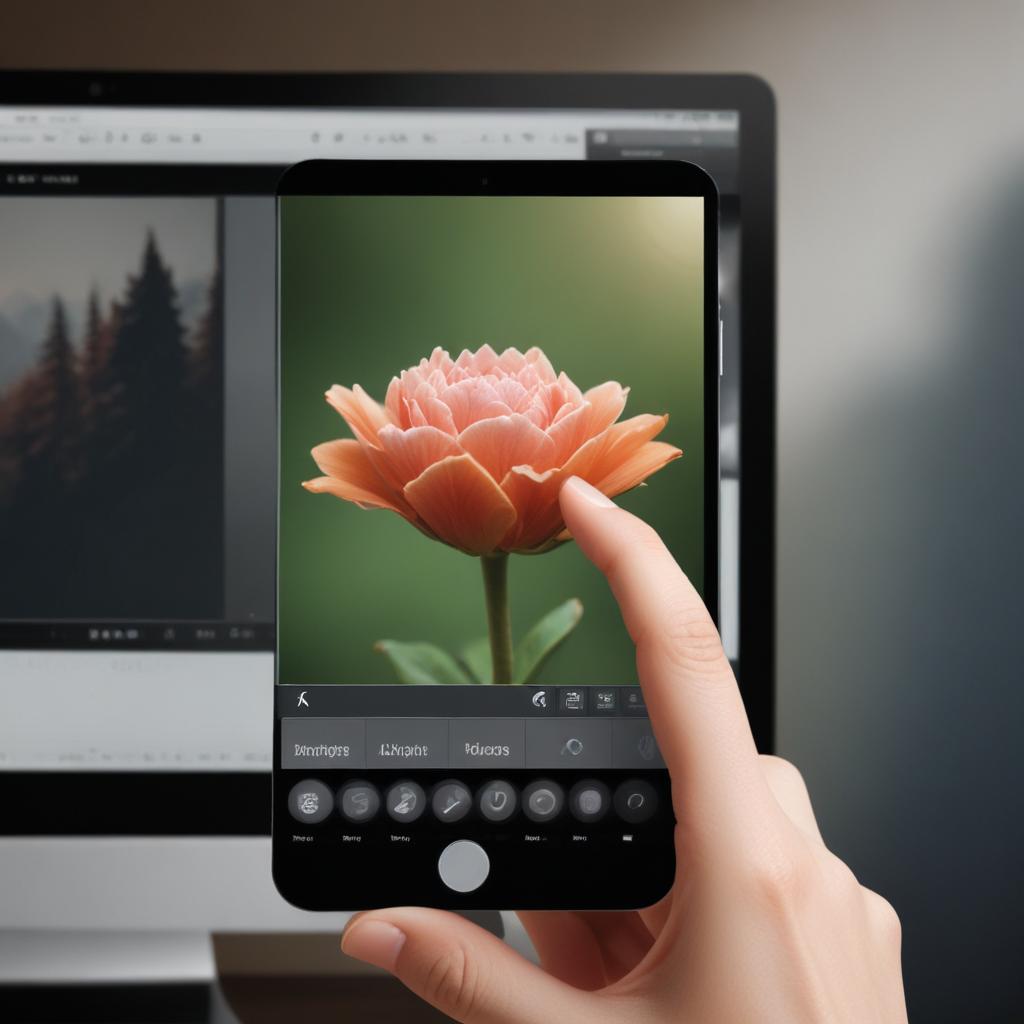
- Apply the “Magic” Auto-Enhance: Open your photo in the app. Look for the Auto, Enhance, or Magic button (it often has a wand icon */*). Tap it! Watch as the photo instantly gets a brightness, contrast, and color boost. Already looks better, right?
- Fix One Specific Thing: Now, let’s remove a distraction. Look for a tool called “Heal,” “Retouch,” or “Remove.” Zoom in on the object (like a sign or a trash can), brush over it lightly, and let go. The AI will analyze the surrounding area and make it disappear.
- Save a Copy: This is the golden rule of editing: Always save your edited photo as a new file. Use “Save a Copy” or “Export.” This way, you always have your precious original photo untouched, just in case.
To see how these tools rank in ease-of-use for a total beginner, check out the chart below.
Beginner’s Mindset: Tips for Success
- Start with “Auto”: Seriously, it’s the most underrated tool. It’s a fantastic way to learn what “good” looks like for your photo.
- Subtlety is Your Friend: It’s easy to get excited and push every effect to 100%. The best edits are often gentle. If you use a sky replacement, dial the effect strength down to 60-70% so it looks more natural.
- Play and Experiment: There’s no “Undo” limit in the digital world. Try every button and slider! The worst that happens is you don’t like it and hit “Cancel.”
- Compare Before & After: Good apps let you tap to see the original photo. Do this often. Does your edit improve the story and feeling of the photo, or just make it look edited?
Frequently Asked Questions
Are these AI tools really free?
Many are! Apps like Google Photos, Snapseed, Canva, and Adobe Photoshop Express have powerful AI features completely free. Some may have premium features behind a paywall, but you can do an incredible amount for $0.
Will AI editing make my photos look fake?
Only if you want it to! AI gives you the power to make dramatic changes, but you are in control. For natural-looking photos, use the tools to enhance what’s already there, not completely replace it. A good rule is: if someone can tell you edited it, you might have gone too far.
What’s the #1 mistake beginners make?
Not saving the original. Always, always keep a copy of the untouched photo. It’s your digital negative.
Do I need to edit every photo?
No! Not every photo needs editing. Sometimes the moment, the expression, or the memory is perfect as it is. Use editing to rescue good photos that have a small technical flaw or to enhance photos you already like.
What should I learn after mastering the basics?
Once you’re comfortable with one-click fixes, you can explore more control. Try learning about “exposure” (overall brightness), “contrast” (the difference between lights and darks), and “white balance” (the warmth or coolness of the colors). These are the foundations that the “Auto” button is adjusting for you.
Your Journey Starts Now
AI photo editing is here to lower the barriers, not raise them. It’s about giving you the confidence to take a good photo and make it great, to save a memory that might have been lost to bad lighting, and most importantly, to have fun being creative.
Your camera roll is full of potential. Go find a photo and give that “Auto” button a tap. You might just surprise yourself.
What’s the first photo you’re going to try editing with AI? Share your before-and-after story (or your biggest beginner question) in the comments below!