

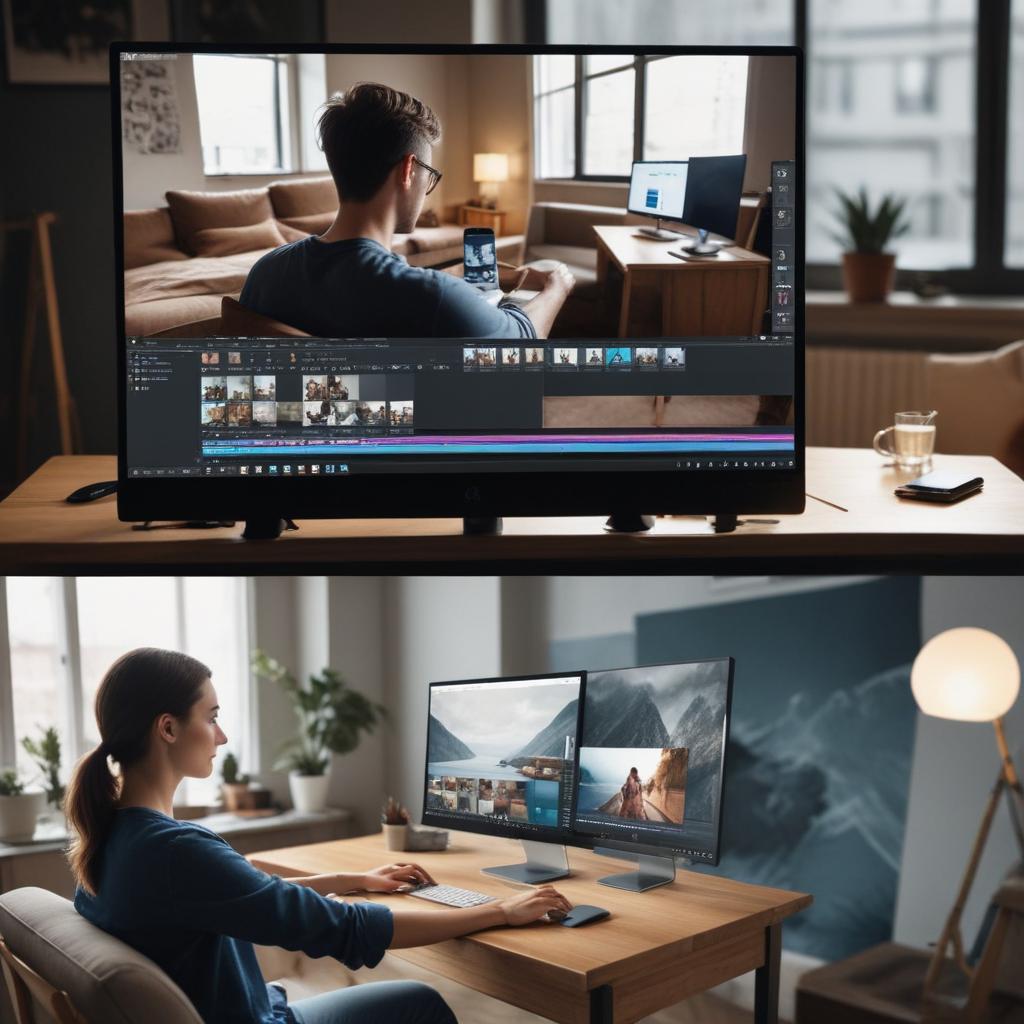
Online vs. Mobile Photo Editors: Which Should You Use?
Choosing the right photo editor can make or break your creative projects. With so many options available today, it’s easy to feel overwhelmed when deciding between online editors that work in your browser and mobile apps on your phone or tablet. Both types have their own strengths and weaknesses, and what works best for one person might not be ideal for another. Your choice depends on factors like what device you use most, how complex your editing needs are, and whether you prefer working on a big screen or the convenience of editing anywhere. Understanding these differences will help you pick the perfect tool for your photo editing adventures.
Online photo editors work best when you need powerful features, precise control, and don’t mind working on a computer with internet access. Mobile photo editors shine when you want convenience, quick edits on the go, and seamless sharing to social media. Online editors typically offer more advanced tools and larger workspaces, while mobile apps provide instant access and touch-friendly interfaces that make editing feel natural and fun.
Understanding Online Photo Editors
Online photo editors are websites that let you edit pictures directly in your web browser without downloading any software. These tools have become incredibly popular because they’re usually free and work on any computer with internet access.
Key characteristics of online editors:
- Run entirely in your web browser
- No installation or updates needed
- Often free with optional premium features
- Access your work from any computer
- Usually offer more screen space for detailed editing
Popular online editors like Canva, Photopea, and Pixlr have gained millions of users because they provide professional-level features without the hefty price tag of traditional software like Photoshop.
The biggest advantage of online editors is that you’re not tied to one specific device – you can start editing on your home computer and finish on your laptop at a coffee shop.
Understanding Mobile Photo Editors
Mobile photo editors are apps you download and install on your smartphone or tablet. These apps are designed specifically for touch screens and take advantage of your device’s camera and built-in features.
What makes mobile editors special:
- Designed for finger and stylus control
- Work offline once downloaded
- Often integrate directly with your device’s camera
- Quick sharing to social media platforms
- Optimized for smaller screens
Apps like VSCO, Lightroom Mobile, and Snapseed have revolutionized how people think about photo editing by making it possible to create stunning images using just your phone.
Performance and Speed Comparison
Online Editor Performance
Online editors depend heavily on your internet connection and computer specifications. Here’s what affects their performance:
Pros:
- Use your computer’s full processing power
- Handle large files better than most phones
- Multiple browser tabs allow easy multitasking
- Keyboard shortcuts speed up workflow
Cons:
- Slow internet makes everything sluggish
- Browser crashes can lose unsaved work
- Some features may lag on older computers
- Large images take time to upload and download
Mobile Editor Performance
Mobile apps run directly on your device, which creates a different set of advantages and limitations:
Pros:
- Work offline after initial download
- Optimized for touch interactions
- Instant access to photos in your gallery
- Battery-efficient for quick edits
Cons:
- Limited by your phone’s processing power
- May struggle with very large image files
- Smaller screens make precise editing harder
- Less multitasking capability
Feature Comparison
Online Editor Features
Online photo editors often try to match the capabilities of desktop software. This means you’ll find:
Advanced Tools:
- Layer support for complex compositions
- Advanced color correction with precise controls
- Text tools with extensive font libraries
- Vector graphics capabilities
- Batch processing for multiple images
Professional Features:
- RAW file support for serious photographers
- Color profile management
- Advanced masking and selection tools
- Plugin support for specialized tasks
Mobile Editor Features
Mobile apps focus on features that work well on touch devices and match how people actually use their phones:
Touch-Optimized Tools:
- Gesture-based editing (pinch, swipe, tap)
- Preset filters for quick style changes
- AI-powered automatic enhancements
- Social media formatting and templates
Mobile-Specific Features:
- Direct camera integration
- GPS location tagging
- Instant sharing capabilities
- Voice commands on supported devices
User Experience and Interface Design
Online Interface Design
Online editors typically use interfaces similar to traditional desktop software:
- Menu bars across the top
- Tool panels on the sides
- Large canvas area in the center
- Keyboard shortcuts for efficiency
- Multiple windows or tabs support
This design works great for detailed work but can feel overwhelming for beginners or quick edits.
Mobile Interface Design
Mobile apps prioritize simplicity and ease of use:
- Bottom navigation bars for thumb access
- Swipe gestures for common actions
- Large buttons designed for fingers
- Simplified menus to reduce clutter
- Full-screen editing views
The mobile approach makes editing feel more intuitive but sometimes hides advanced features.
Cost Analysis and Value
Online Editor Pricing
Most online editors follow a freemium model:
Free Tiers Usually Include:
- Basic editing tools
- Limited export resolution
- Watermarked downloads
- Smaller storage space
Premium Features Often Cost:
- $5-15 per month for individuals
- Higher resolution exports
- Advanced tools and filters
- Cloud storage upgrades
- Priority customer support
Mobile Editor Pricing
Mobile apps use various pricing strategies:
One-Time Purchase:
- $1-10 for premium apps
- All features unlocked forever
- No monthly fees
Subscription Models:
- $2-10 per month
- Regular feature updates
- Cloud sync across devices
In-App Purchases:
- Free app with paid add-ons
- Individual filter packs or tools
- Can add up quickly
When to Choose Online Editors
Online photo editors work best in these situations:
For Professional Work: If you’re doing client projects, detailed retouching, or complex compositions, online editors give you the tools and screen space you need.
For Learning Advanced Techniques: The larger interface makes it easier to explore menus, learn keyboard shortcuts, and understand complex tools.
For Collaborative Projects: Many online editors let multiple people work on the same project, making them great for teams.
For Consistent Workflow: If you’re already working on a computer for other tasks, staying in the browser keeps your workflow smooth.
When to Choose Mobile Editors
Mobile photo editors are perfect for:
Instant Social Media Sharing: When you want to snap a photo and share it immediately, mobile apps can’t be beat for convenience.
On-the-Go Editing: Whether you’re traveling, commuting, or just relaxing on the couch, mobile editing fits into your lifestyle.
Quick Touch-Ups: For simple adjustments like brightness, contrast, or adding filters, mobile apps are often faster than online alternatives.
Creative Experimentation: The intuitive touch interface makes it fun to try different effects and see immediate results.
Comparison Table: Online vs Mobile Photo Editors
| Feature | Online Editors | Mobile Editors | Winner |
|---|---|---|---|
| Screen Size | Large workspace | Limited by device | Online |
| Convenience | Need computer + internet | Always in your pocket | Mobile |
| Processing Power | Uses full computer specs | Limited by phone/tablet | Online |
| Touch Interface | Mouse/trackpad only | Optimized for fingers | Mobile |
| Advanced Tools | Professional-level features | Simplified but effective | Online |
| Social Sharing | Manual export/upload | One-tap sharing | Mobile |
| Offline Access | Requires internet | Works offline | Mobile |
| Learning Curve | Steeper but more capable | Quick to master | Mobile |
| File Size Handling | Handles large files well | May struggle with big images | Online |
| Collaboration | Multi-user features common | Usually single-user | Online |
Hybrid Approach: Using Both
You don’t have to choose just one type of editor. Many successful content creators use both online and mobile editors for different purposes:
Mobile for Capture and Quick Edits:
- Take photos with your phone
- Apply quick filters and basic adjustments
- Share time-sensitive content immediately
Online for Detailed Work:
- Import photos for serious editing
- Create complex compositions
- Prepare high-resolution files for printing
- Work on client projects that need precision
Popular Workflow Examples:
- Influencer approach: Mobile for daily stories, online for planned posts
- Photographer method: Mobile for scouting and previews, online for final processing
- Business strategy: Mobile for quick social updates, online for marketing materials
Making Your Decision
Consider these questions to help choose the right tool:
What’s your main goal?
- Quick social media posts → Mobile
- Professional portfolio work → Online
- Mix of both → Hybrid approach
How often do you edit photos?
- Daily casual editing → Mobile
- Weekly detailed projects → Online
- Both regularly → Both tools
What device do you use most?
- Primarily phone/tablet → Mobile
- Mostly computer work → Online
- Switch between devices → Cloud-syncing options
FAQ Section
Q: Can mobile editors handle professional-quality work? A: Modern mobile editors like Lightroom Mobile and Affinity Photo can produce professional results, but they’re still limited by screen size and processing power compared to desktop solutions.
Q: Do I need internet to use online photo editors? A: Yes, online editors require a stable internet connection to function. Some cache basic features, but you’ll need connectivity for uploads, downloads, and most editing functions.
Q: Which is better for beginners – online or mobile editors? A: Mobile editors are generally easier for beginners because of their simplified interfaces and touch controls. However, online editors often have better tutorials and learning resources.
Q: Can I use the same editor on both my phone and computer? A: Some companies offer both versions – like Adobe Lightroom (online and mobile) or Canva (web and app). These often sync your projects across devices.
Q: Are free mobile editors as good as paid ones? A: Free mobile editors can be excellent for basic needs, but paid versions typically offer more advanced features, no ads, and higher export quality. The difference is less dramatic than it used to be.
Q: How do online editors compare to desktop software like Photoshop? A: Online editors are catching up quickly but still lack some advanced features of desktop software. However, they’re much more accessible and often sufficient for most users’ needs.
Q: Will mobile editing drain my phone battery quickly? A: Basic editing uses minimal battery, but intensive tasks like applying complex filters or working with large images can drain battery faster. Most phones handle typical editing sessions without issues.
Q: Can I edit RAW photos on mobile devices? A: Yes! Many mobile editors now support RAW files, including Lightroom Mobile, VSCO, and Snapseed. However, the experience is usually better on devices with more processing power.


