Offline Mobile Editors for Quick Image Fixes: Your Pocket Photo Studio
Taking photos with your phone is easier than ever, but sometimes those pictures need a little help to look their best. Whether you snapped a sunset that looks too dark or a family photo where someone blinked, having the right editing tools can make all the difference. The good news? You don’t need fancy computer software or an internet connection to fix common photo problems.
Mobile photo editing apps that work offline give you the power to quickly enhance your images anywhere, anytime. These pocket-sized tools can adjust brightness, crop awkward angles, remove unwanted objects, and apply filters to transform ordinary photos into eye-catching memories. From simple brightness tweaks to advanced color correction, offline editors put professional-quality results right at your fingertips without needing WiFi or mobile data.
Why Choose Offline Mobile Editors?
When you’re traveling, camping, or just dealing with spotty internet, offline photo editors become lifesavers. These apps store all their tools directly on your phone, which means you can edit photos even when you’re completely disconnected from the web.
The Freedom of Disconnected Editing
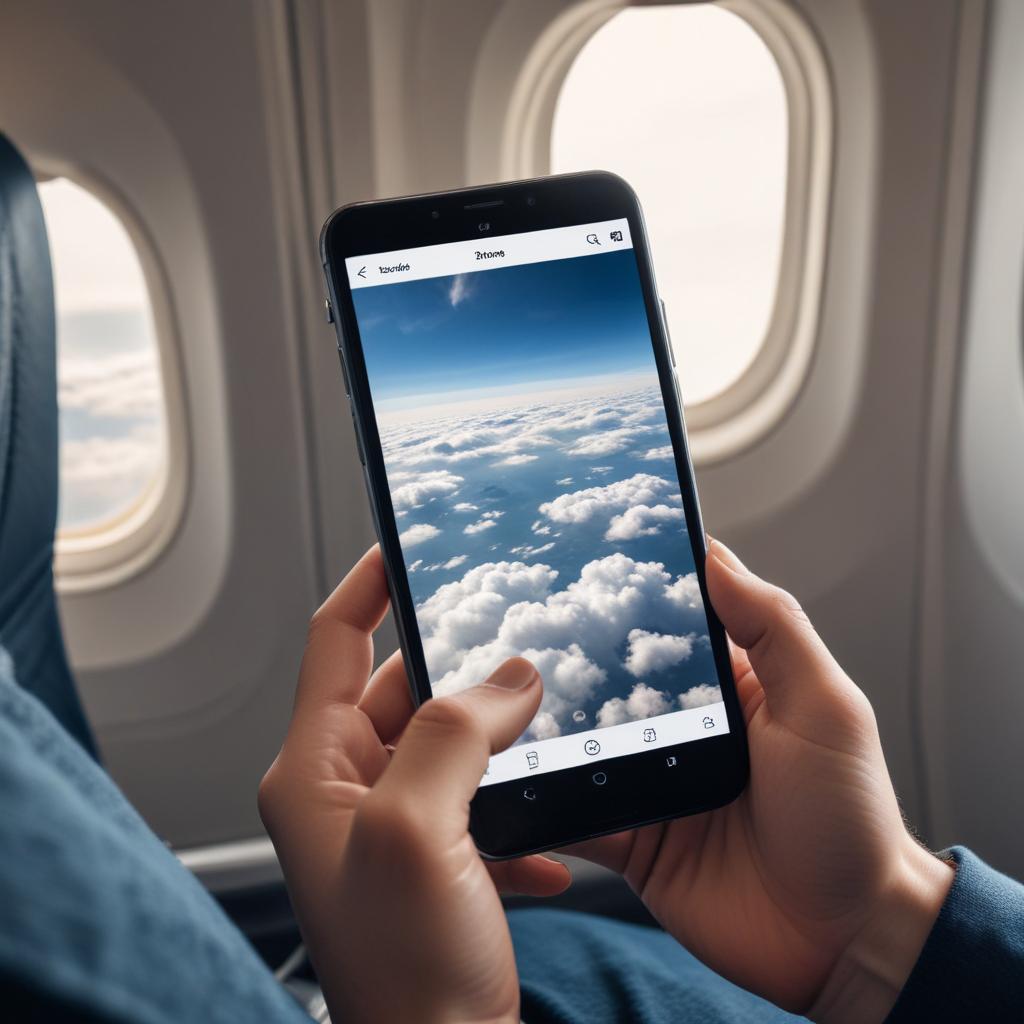
No internet required means you can work on photos during flights, in remote locations, or when trying to save data. This freedom lets you be creative without worrying about connection speeds or monthly data limits.
Many people discover that offline editing actually helps them focus better. Without notifications popping up or the temptation to browse social media, you can concentrate fully on making your photos shine.
Speed and Reliability Benefits
Offline apps typically run faster because they don’t need to upload or download anything. Your photos stay on your device, which also means better privacy and security. You control where your pictures go and who sees them.
“The best camera is the one you have with you, and the best editor is the one that works when you need it most.”
Top Features to Look for in Mobile Photo Editors
Not all editing apps are created equal. Some focus on basic fixes while others offer advanced tools that rival desktop software. Here’s what separates the good apps from the great ones.
Essential Editing Tools
Basic adjustments should include brightness, contrast, saturation, and sharpness controls. These four tools alone can fix most common photo problems. Look for apps that make these adjustments easy with simple sliders or one-touch options.
Cropping and rotating tools help you fix composition issues and straighten tilted horizons. The best apps offer preset ratios for social media platforms, making it easy to prepare photos for Instagram, Facebook, or other sites.
Advanced Features Worth Having
Selective editing lets you adjust specific parts of your photo without changing everything. This might mean brightening just someone’s face or making only the sky more dramatic.
Healing and clone tools can remove unwanted objects, people, or blemishes. These features used to require expensive computer programs but are now available in many mobile apps.
Layer support allows more complex edits by stacking different adjustments and effects. While not necessary for quick fixes, layers give you more creative control.
Best Offline Mobile Editors Compared
| App Name | Platform | Price | Best For | Key Features |
|---|---|---|---|---|
| VSCO | iOS/Android | Free + Premium | Filters & Film Looks | Professional presets, manual controls |
| Snapseed | iOS/Android | Free | All-around editing | Google’s powerful tools, selective edits |
| Adobe Lightroom Mobile | iOS/Android | Free + Premium | RAW processing | Professional color grading, cloud sync |
| Canva | iOS/Android | Free + Premium | Social media prep | Templates, text overlay, easy sharing |
| PicsArt | iOS/Android | Free + Premium | Creative effects | Artistic filters, collages, drawing tools |
| Pixlr | iOS/Android | Free + Premium | Quick fixes | One-tap enhancements, overlays |
Quick Fixes Every Mobile Editor Should Handle
Most photo problems fall into a few common categories. Knowing how to tackle these issues will improve your pictures dramatically.
Lighting Problems
Too dark photos happen all the time, especially indoors or during golden hour. The shadows slider usually works better than overall brightness for these situations. It lifts the dark areas without making bright spots too harsh.
Overexposed images where parts are too bright need the highlights slider pulled down. Sometimes you’ll also need to increase shadows to balance everything out.
Color Issues
White balance problems make photos look too yellow, blue, or green. Most apps have an auto white balance feature, but manual temperature and tint sliders give you more control.
Dull colors can be fixed with saturation adjustments, but be careful not to overdo it. Vibrance is often a better choice because it only boosts colors that need it while protecting skin tones.
Composition Problems
Crooked horizons are easy to fix with rotation tools. Many apps have grid overlays to help you get things perfectly straight.
Poor framing can often be improved by cropping. Try the rule of thirds – many apps have a grid that divides your photo into nine sections. Placing important subjects along these lines usually creates more interesting compositions.
Step-by-Step Guide for Common Edits
Let’s walk through fixing a typical outdoor photo that’s too dark with a tilted horizon.
The Basic Workflow
- Start with straightening – Use the rotate tool to level the horizon
- Crop if needed – Remove distracting elements from the edges
- Adjust exposure – Brighten the overall image if it’s too dark
- Fix shadows and highlights – Lift shadows to reveal details, lower highlights if they’re too bright
- Enhance colors – Add vibrance or saturation as needed
- Sharpen details – A small amount of sharpening often improves photos
Pro Tips for Better Results
Make small adjustments rather than dramatic ones. It’s better to move sliders a little at a time and see how each change affects your photo.
Edit with your final use in mind. Photos for Instagram might need different treatment than ones you’ll print or view on a computer screen.
Save your original before making changes. Most apps do this automatically, but double-check to avoid losing your unedited version.
Choosing the Right App for Your Needs
The best editing app depends on what you want to accomplish and how much time you want to spend learning new tools.
For Beginners
Snapseed offers powerful features with a user-friendly interface. Google designed it to be intuitive while still providing professional-level tools. The automatic enhancement feature works well for quick fixes.
VSCO excels at filters that mimic film photography. If you like the look of vintage cameras, VSCO’s presets can instantly transform digital photos.
For Advanced Users
Adobe Lightroom Mobile brings desktop-quality editing to your phone. It handles RAW files and offers the most precise control over colors and tones.
PicsArt combines traditional editing with creative features like drawing tools and artistic effects. It’s perfect for users who want to add text, stickers, or other graphic elements.
Making Your Edits Look Natural
The goal of photo editing should be making your images look like better versions of reality, not obviously manipulated pictures.
Avoiding Over-Editing
Skin tones are the first thing people notice when photos look fake. Keep an eye on how your adjustments affect people’s faces, especially with saturation and vibrance.
Realistic lighting means shadows and highlights should make sense. If you brighten shadows too much, photos can look flat and artificial.
Consistent style throughout a series of photos creates a cohesive look. This is especially important for social media posts or photo albums.
FAQ
Q: Can offline editors really match desktop software quality? A: Modern mobile editors are surprisingly powerful. While they might not have every feature of programs like Photoshop, they can handle most common editing tasks with professional results.
Q: How much storage space do these apps use? A: Basic editing apps typically use 50-200 MB of storage. Apps with lots of filters and effects might need more space, especially if you download additional content packs.
Q: Will editing lower my photo quality? A: Saving edited photos as high-quality JPEG or PNG files maintains good image quality. Avoid saving at low quality settings, and try to edit from your original photo rather than making multiple rounds of changes.
Q: Can I edit RAW photos on my phone? A: Yes, several apps including Adobe Lightroom Mobile and Snapseed support RAW file editing. This gives you much more control over the final image quality.
Q: Do I need to pay for premium features? A: Many apps offer excellent free versions that handle most editing needs. Premium features usually include extra filters, advanced tools, or cloud storage options.
Q: How do I know if I’m over-editing my photos? A: Step away from your phone for a few minutes, then look at your edited photo again. If it looks dramatically different from how you remember the scene, you might have pushed the adjustments too far.
Q: Can I undo changes if I don’t like them? A: Most apps have undo buttons and edit history features. Some save your original photo automatically, while others let you reset all changes with one tap.
Q: Which format should I save my edited photos in? A: JPEG works well for most uses and takes less storage space. PNG preserves slightly better quality but creates larger files. Choose based on whether you need maximum quality or want to save storage space.