iPhone Photo Editing Hacks You Should Try Today
Your iPhone isn’t just a camera – it’s a powerful photo editing studio sitting right in your pocket. Most people snap photos and share them without realizing they’re missing out on simple tricks that could make their pictures look amazing. Whether you’re taking selfies, capturing family moments, or shooting cool landscapes, these editing hacks will help you create photos that stand out on social media and impress your friends.
iPhone photo editing doesn’t require expensive apps or complicated skills. With built-in tools and a few clever techniques, you can transform ordinary snapshots into stunning images. From adjusting brightness and colors to removing unwanted objects and creating artistic effects, your iPhone has everything needed to make professional-looking photos. The key is knowing which buttons to tap and understanding how each tool works together to enhance your pictures.
Getting Started with iPhone’s Built-in Editor
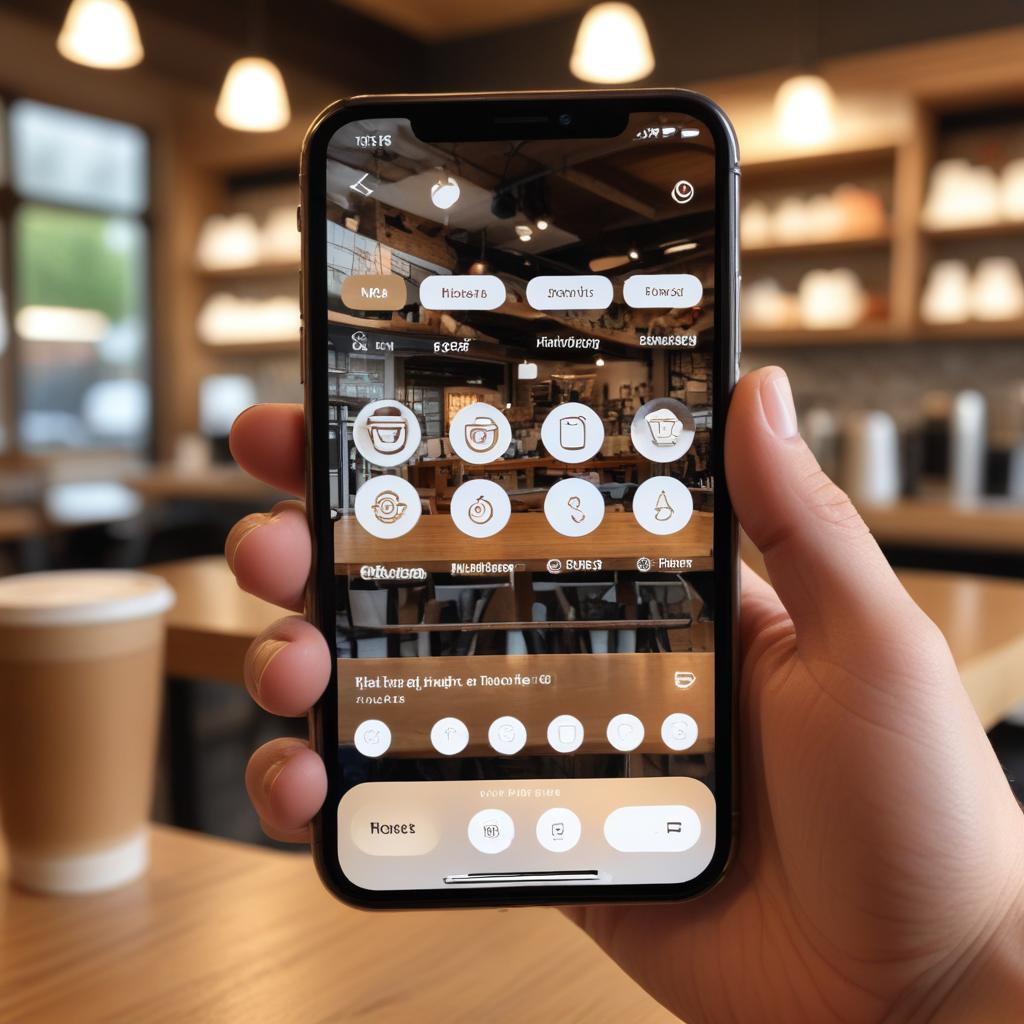
Your iPhone comes with a fantastic photo editor that most people barely use. Open any photo in your Photos app, then tap “Edit” in the top right corner. You’ll see three main sections at the bottom: filters, adjustments, and crop tools.
The adjustment tools are where the real magic happens. These include exposure, brilliance, highlights, shadows, contrast, brightness, black point, saturation, vibrancy, warmth, and tint. Each slider can dramatically change how your photo looks and feels.
Start with small adjustments rather than extreme changes. Move each slider slowly and watch how it affects your image. The goal is to enhance what’s already there, not to create something completely fake-looking.
Master the Exposure Triangle
Understanding exposure is crucial for better photos. Exposure controls how light or dark your entire image appears. If your photo looks too dark, slide the exposure to the right. If it’s too bright and washed out, slide it left.
Highlights and shadows work together beautifully. When you have a photo with very bright areas (like a sunny sky) and very dark areas (like someone’s face in shade), these tools can balance everything out. Pull down the highlights to recover details in bright spots, then push up the shadows to brighten dark areas.
This technique works especially well for outdoor portraits and landscape shots where the lighting isn’t perfect.
Advanced Color Correction Techniques
Colors can make or break a photo. Your iPhone gives you several ways to adjust them, and knowing when to use each tool makes a huge difference.
Saturation makes all colors more intense, while vibrancy only affects the less-saturated colors in your image. This means vibrancy is usually safer to use because it won’t make skin tones look weird or skies look fake.
Warmth shifts your photo toward orange (warmer) or blue (cooler) tones. Warmer photos feel cozy and inviting, while cooler photos can look more modern or dramatic. Tint adjusts the green-to-magenta balance, which is perfect for fixing photos taken under fluorescent lights.
The Secret of Selective Color Editing
Here’s a trick many people don’t know: you can edit specific colors in your photos. In the Photos app, tap Edit, then the adjustment icon, then look for the color adjustment wheel. This lets you change how specific colors look without affecting the rest of your image.
For example, you can make the blue sky more vibrant without changing skin tones, or adjust the green in grass without affecting other colors. This selective approach creates more natural-looking results than boosting overall saturation.
Creative Cropping and Composition
Cropping isn’t just about making photos smaller – it’s about improving composition and telling a better story. The rule of thirds is your best friend here. Turn on the grid in your crop tool and place important subjects along the lines or at intersection points.
Don’t be afraid to crop tightly. Sometimes removing distracting elements around the edges makes your main subject pop. Portrait photos often look better when cropped to remove empty space above someone’s head.
Aspect Ratio Magic
Different aspect ratios create different moods. Square crops (1:1) work great for Instagram and create a balanced, stable feeling. Wide crops (16:9) can make landscapes feel more dramatic and expansive.
Try the 2.35:1 cinematic ratio for a movie-like feel, or use 4:5 for portraits that work well on social media feeds.
Filter Strategies That Actually Work
iPhone filters get a bad reputation, but when used correctly, they’re powerful tools. The key is subtlety. Apply a filter at full strength, then reduce its intensity using the dial that appears.
Vivid Warm and Vivid Cool are excellent starting points for many photos. They enhance colors without looking obviously filtered. Mono and Silvertone create classic black-and-white looks, while Noir adds drama with increased contrast.
Don’t just stick with one filter for all photos. Different images need different treatments based on lighting, subject matter, and the mood you want to create.
Third-Party App Recommendations
While iPhone’s built-in editor is powerful, some situations call for specialized tools. VSCO offers film-inspired filters and advanced editing controls. Snapseed (free from Google) provides professional-level tools including selective adjustments and healing brushes.
Lightroom Mobile brings desktop-level power to your phone, with the ability to edit RAW files if you shoot in ProRAW mode. RNI Films creates authentic film looks that don’t scream “I used an app.”
The key with third-party apps is not to go overboard. Use them to achieve specific looks or access tools your iPhone doesn’t have, but remember that good editing enhances rather than overwhelms.
Quick Fixes for Common Problems
| Problem | Solution | iPhone Tool |
|---|---|---|
| Photo too dark | Increase exposure and shadows | Exposure slider, Shadows slider |
| Photo too bright | Decrease exposure and highlights | Exposure slider, Highlights slider |
| Colors look dull | Increase vibrancy (not saturation) | Vibrancy slider |
| Skin tones look orange | Decrease warmth, adjust tint if needed | Warmth slider, Tint slider |
| Background distractions | Crop tighter or use portrait mode | Crop tool, Portrait effect |
| Uneven lighting | Balance highlights and shadows | Highlights slider, Shadows slider |
| Photo looks flat | Increase contrast slightly | Contrast slider |
| Colors too intense | Decrease saturation, increase brightness | Saturation slider, Brightness slider |
Time-Saving Batch Editing Tricks
Once you’ve edited one photo perfectly, you can copy those settings to similar images. In the Photos app, tap the share button on your edited photo, then “Copy.” Select other photos and tap “Paste” to apply the same adjustments.
This works especially well for photos taken in the same lighting conditions, like a series of portraits from the same photo session.
Creating Your Own Presets
While iPhone doesn’t have built-in presets like professional software, you can create your own system. Take notes on the exact slider positions for looks you love, or take screenshots of your adjustment panels. This helps you recreate successful edits on future photos.
Professional Tips for Better Results
Work in good lighting when editing. The screen brightness and ambient light affect how you perceive colors and contrast. Edit in consistent lighting conditions for better results.
Take breaks between heavy editing sessions. Your eyes adjust to changes, making it harder to judge when you’ve gone too far. Step away for a few minutes, then look at your edits with fresh eyes.
Compare before and after regularly. Hold down on your photo while editing to see the original, then release to see your changes. This prevents you from over-editing.
“The best edit is often the most subtle one. If people notice your editing more than your actual photo, you’ve probably gone too far.”
Remember that editing should enhance your photo’s story, not create a completely different one. Keep it natural, keep it believable, and most importantly, keep it fun.
FAQ
Q: Should I edit every photo I take? A: Not necessarily. Some photos look great straight from the camera. Edit only when it improves the image or helps tell your story better.
Q: How do I know if I’m over-editing? A: If skin tones look unnatural, colors appear too intense, or the image looks obviously processed, you’ve probably gone too far. Use the before/after comparison frequently.
Q: Can I undo edits after saving? A: Yes! iPhone keeps your original photo and edit history. Tap “Edit” then “Revert” to go back to the original, or adjust individual sliders to modify your previous edits.
Q: Which photo format is best for editing? A: HEIF (the default iPhone format) works well for most editing. If you have a newer iPhone, consider shooting in ProRAW for maximum editing flexibility.
Q: Do free editing apps have watermarks? A: Most don’t, but some premium features might require payment. Apps like Snapseed are completely free without watermarks, while others offer basic features free with paid upgrades.
Q: How can I make my photos look more professional? A: Focus on proper exposure, natural colors, and clean composition. Avoid heavy filters and extreme adjustments. Consistency across your photos also creates a more professional look.