10 Free Online Tools for Fast Photo Touch-Ups
Getting perfect photos doesn’t always happen on the first try. Sometimes your selfie needs brighter colors, or that family picture could use better lighting. Maybe there’s a small blemish you want to remove, or the background looks too busy. The good news is that you don’t need expensive software or years of training to fix these problems. Thanks to modern technology, anyone can improve their photos in just a few minutes using free online tools.
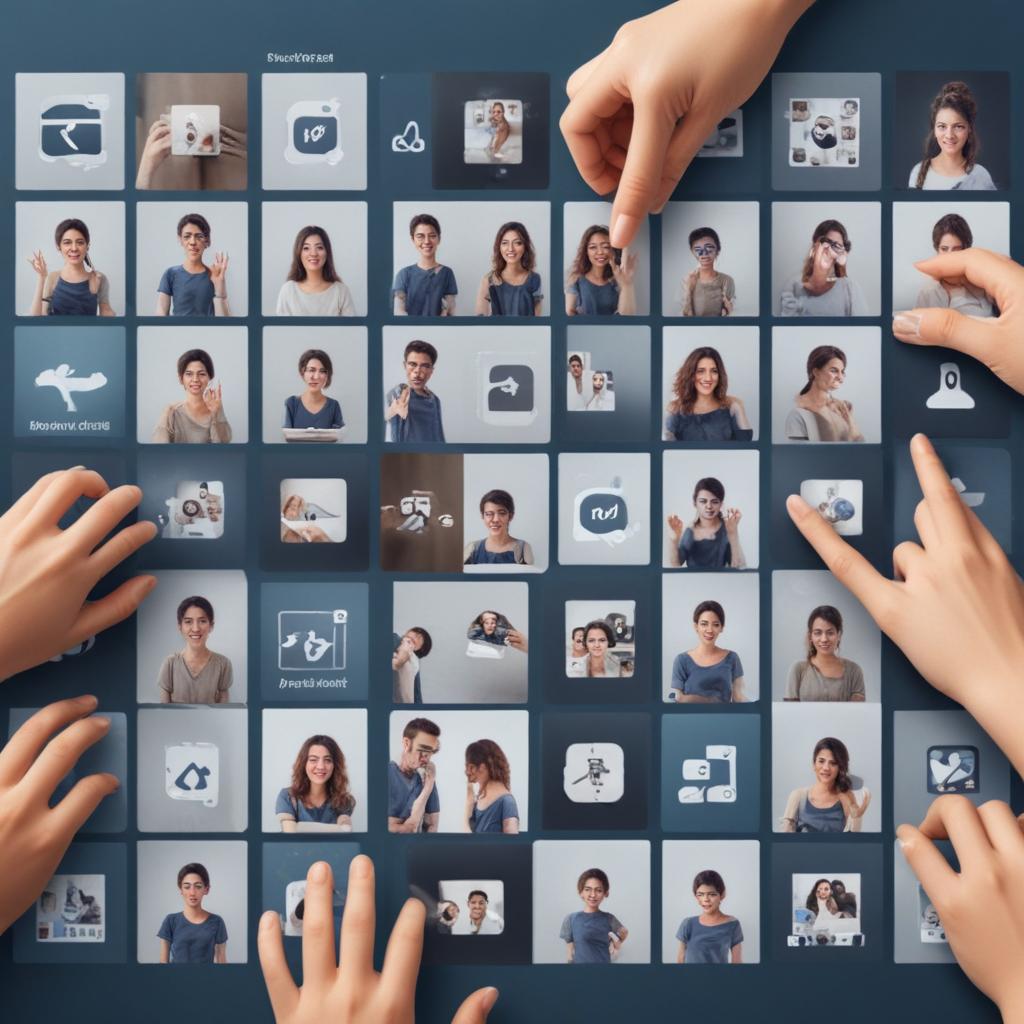
Photo editing used to require expensive programs and lots of technical knowledge, but today’s free online tools make it simple for anyone to enhance their pictures. These web-based editors offer features like brightness adjustment, blemish removal, background changes, and color corrections without downloading any software. Most work directly in your browser and provide instant results, making photo touch-ups accessible to everyone regardless of their experience level.
Quick Comparison of Free Photo Editing Tools
| Tool Name | Best For | Key Features | Difficulty Level | Mobile Friendly |
|---|---|---|---|---|
| Canva | Social media posts | Templates, filters, text overlay | Beginner | Yes |
| GIMP Online | Advanced editing | Layers, professional tools | Advanced | Limited |
| Photopea | Photoshop alternative | PSD support, full editor | Intermediate | Yes |
| Remove.bg | Background removal | AI-powered background cuts | Beginner | Yes |
| Pixlr | Quick fixes | Filters, basic adjustments | Beginner | Yes |
| Fotor | Portrait touch-ups | Beauty tools, skin smoothing | Beginner | Yes |
| PhotoPad | Comprehensive editing | Effects, color correction | Intermediate | No |
| Befunky | Creative effects | Filters, collages, design | Beginner | Yes |
| Paint.NET Online | Windows Paint upgrade | Better tools than basic paint | Intermediate | Limited |
| LunaPic | Fun effects | Animations, special filters | Beginner | Yes |
The Top Free Photo Editing Platforms
Canva – Perfect for Social Media
Canva stands out as one of the most user-friendly options available. While many people know it for creating graphics, its photo editing features work great for quick touch-ups. You can adjust brightness, add filters, and even include text overlays for social media posts.
The platform offers thousands of free templates, making it simple to create eye-catching posts for Instagram, Facebook, or Twitter. Its drag-and-drop interface means you don’t need any design experience. Just upload your photo, pick a template, and start editing.
“Canva makes photo editing feel like playing with digital stickers and colors. It’s so simple that even my grandma uses it for her Facebook posts!”
GIMP Online – For Serious Editors
GIMP (GNU Image Manipulation Program) brings professional-level tools to your browser. This free alternative to expensive software includes layers, advanced selection tools, and detailed color correction options. While it has a steeper learning curve, the results can match what professionals create.
The online version works entirely in your browser, so you don’t need to install anything. It supports many file types and offers features like clone tools for removing unwanted objects, healing brushes for skin retouching, and precise selection tools.
Photopea – The Photoshop Clone
Photopea deserves special attention because it looks and works almost exactly like Adobe Photoshop. If you’ve used Photoshop before, you’ll feel right at home. If you haven’t, the familiar layout makes learning easier since there are tons of Photoshop tutorials online.
This tool supports PSD files, meaning you can open and edit files created in Photoshop. It includes layers, masks, and most professional editing features you’d expect from paid software.
Specialized Tools for Specific Tasks
Remove.bg – Background Magic
Sometimes you need to change or remove a photo’s background completely. Remove.bg uses artificial intelligence to automatically detect and remove backgrounds from your photos. Simply upload your image, and within seconds, you’ll have a clean cutout of your subject.
This tool works especially well for:
- Product photos for online selling
- Profile pictures with clean backgrounds
- Creating transparent images for presentations
- Removing distracting backgrounds from portraits
Pixlr – Quick and Easy Fixes
Pixlr focuses on speed and simplicity. Its clean interface makes basic adjustments fast and straightforward. You can fix common problems like:
- Dark photos – Brighten them with one-click tools
- Dull colors – Boost saturation for more vibrant images
- Red eyes – Remove them automatically
- Crop and resize – Perfect for different social media sizes
The tool offers both basic and advanced modes, so beginners can start simple and gradually try more complex features as they learn.
Fotor – Beauty and Portrait Specialist
For selfies and portrait photos, Fotor provides specialized beauty tools that work like magic. Its portrait editing features can smooth skin, whiten teeth, and even slim faces naturally. Unlike harsh filters that make people look fake, Fotor’s tools create subtle improvements.
Key portrait features include:
- Wrinkle reduction that looks natural
- Eye brightening and enhancement
- Skin tone evening and blemish removal
- Hair color changes and touch-ups
Creative and Fun Editing Options
BeFunky – Artistic Effects
BeFunky combines practical editing tools with creative effects that can transform ordinary photos into artwork. Its collection includes vintage filters, artistic effects, and collage makers for combining multiple images.
The platform excels at:
- Creating photo collages for special events
- Adding artistic filters that don’t look cheesy
- Designing custom graphics with your photos
- Making animated GIFs from your images
LunaPic – Entertainment Value
LunaPic brings the fun factor to photo editing. While it includes standard editing tools, its specialty lies in creative and entertaining effects. You can add falling snow to summer photos, create mirror effects, or turn your pictures into puzzles.
This tool works great for:
- Adding weather effects to any photo
- Creating funny distortion effects
- Making animated elements in your pictures
- Adding borders and frames with personality
Professional Features Without the Cost
PhotoPad – Comprehensive Editing Suite
PhotoPad offers a complete editing experience that rivals expensive desktop software. Its feature set includes advanced color correction, multiple layer support, and professional-grade filters.
The tool handles complex tasks like:
- Color grading for cinematic looks
- Noise reduction for clearer images
- Sharpening tools for crisp details
- Batch processing for editing multiple photos at once
Paint.NET Online – Familiar Yet Powerful
For users comfortable with Microsoft Paint, Paint.NET Online provides a natural upgrade path. It maintains the familiar interface while adding professional features like layers, effects, and advanced selection tools.
Tips for Getting the Best Results
Start with good lighting. Even the best editing tools can’t fix severely dark or overexposed photos. Try to work with images that have decent lighting to begin with.
Make small adjustments. Heavy editing often looks artificial. Make subtle changes and build up effects gradually rather than applying strong corrections all at once.
Save your original files. Always keep a copy of your unedited photo. This way, you can start over if you don’t like your changes or want to try different approaches.
Learn keyboard shortcuts. Most online editors support common shortcuts like Ctrl+Z for undo and Ctrl+S for save. These speed up your workflow significantly.
Making the Right Choice
The best tool depends on your specific needs and skill level. Beginners should start with Canva or Pixlr for basic adjustments. Those wanting professional results might prefer GIMP or Photopea. For specific tasks like background removal, specialized tools like Remove.bg work better than general editors.
Consider your typical editing tasks. Do you mainly post to social media? Canva handles that perfectly. Need to remove backgrounds regularly? Remove.bg saves time. Want to learn professional techniques? GIMP or Photopea provide the tools and learning opportunities.
Most importantly, don’t be afraid to experiment. These tools are free, so you can try different options until you find what works best for your style and needs. Many people use multiple tools depending on the task at hand.
Frequently Asked Questions
Q: Do these free tools work on mobile phones? A: Yes, most of these tools work well on mobile browsers. Canva, Pixlr, and Remove.bg are particularly mobile-friendly. However, complex editing tasks are usually easier on larger screens.
Q: Can I edit RAW files from my camera? A: Some tools like GIMP and Photopea can handle RAW files, but most free online editors work best with JPEG and PNG formats. For serious RAW processing, you might need dedicated software.
Q: Are my photos safe when using online editors? A: Reputable tools like those mentioned here take privacy seriously. However, always read privacy policies and avoid uploading sensitive images to any online service if you’re concerned about privacy.
Q: Do I need to create accounts to use these tools? A: Most offer basic editing without registration. Creating accounts usually provides additional features like cloud storage and access to premium templates.
Q: Can these tools replace expensive software like Photoshop? A: For most casual users, yes. Tools like GIMP and Photopea offer professional-level features. However, professionals might still prefer desktop software for complex projects or specific workflow requirements.
Q: How do I choose the right tool for my needs? A: Start with your main goal. For quick social media edits, try Canva. For background removal, use Remove.bg. For learning professional editing, start with Pixlr and gradually move to GIMP or Photopea as you gain experience.