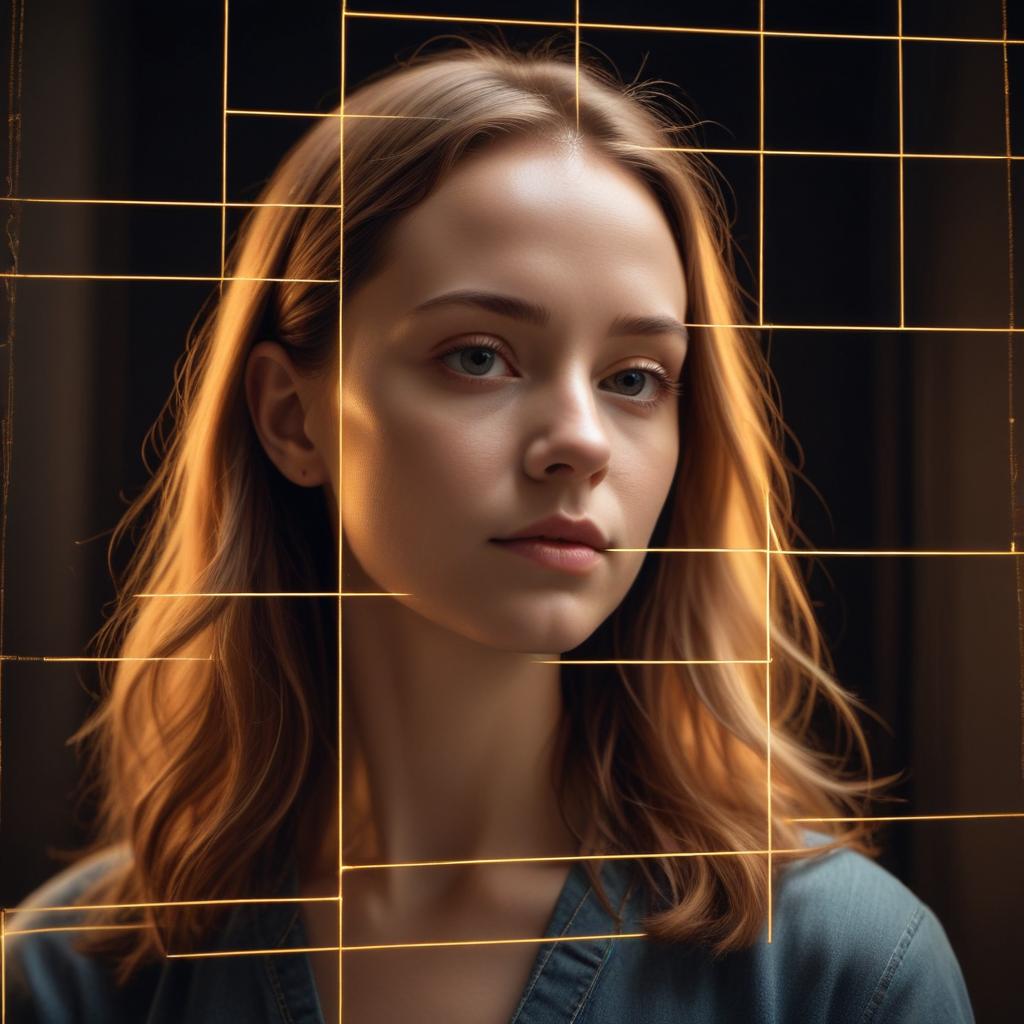
AI-Powered Composition Tools for Better Framing
Ever looked at a photo and thought, “Something feels off,” but you just can’t figure out what? It might be the composition—the secret language that guides our eyes through a picture.
Getting the framing right can be tricky, even for seasoned photographers. But what if your editing software could act like a wise mentor, gently pointing out ways to make your images more balanced and compelling? That’s the promise of AI-powered composition tools. This guide will show you how these smart assistants can help you create more engaging photos, whether you’re a hobbyist or a pro.
What Are AI Composition Tools, Really?
Think of AI composition tools as a built-in art critic that has studied millions of award-winning photos, classic paintings, and stunning films. They don’t just randomly suggest crops. They understand the principles that make a visual scene work, and they can apply those rules to your specific image.
How the AI “Sees” Your Photo
These tools analyze your image by breaking it down into key elements. They look for:
- Key Subjects: Identifying the main point of interest, like a person’s face, an animal, or a building.
- Leading Lines & Geometry: Detecting natural lines in the scene, like roads, horizons, or the edges of buildings.
- Balance & Weight: Assessing how visual “weight” is distributed across the frame to create harmony or tension.
- Negative Space: Recognizing empty areas and how they can be used to enhance the main subject.
“A great crop doesn’t just cut out the bad parts; it reveals the best version of the story you’re trying to tell.”
Your AI Cropping and Framing Toolkit
These tools come in different forms, from simple one-click fixes to advanced guides that teach you as you edit.
1. The Smart Crop: Your Instant Fix
This is the most common and helpful tool. You upload a photo, and the AI suggests one or several alternative crops based on compositional rules.
- Rule of Thirds: It will often align your subject with the intersecting lines of a Rule of Thirds grid for a classic, balanced look.
- Auto Horizon Leveling: It can detect and automatically straighten a crooked horizon line in landscapes or cityscapes.
- Portrait Reframing: For headshots, it might suggest a tighter crop to emphasize the eyes, following the classic principles of portrait photography.
- This is perfect for when you’re stuck. Even if you don’t use the exact suggestion, it can spark a new idea for how to frame your shot.
2. The Composition Overlay: Your Digital Mentor
Some apps go beyond cropping and use live overlays to guide you before you make a cut.
- Dynamic Guides: As you drag the crop box, the AI might display a live Golden Spiral or Golden Ratio overlay, showing you how to position your subject for a naturally pleasing flow.
- Subject Highlighting: The tool might subtly highlight the area it has identified as the main subject, helping you ensure it remains the focal point of your new composition.
- Distraction Detection: Some advanced tools can flag cluttered edges or distracting background elements you might want to crop out.
3. The “Content-Aware” Resize & Fill: Your Creative Ally
This is where AI feels like magic. Tools like Adobe Photoshop’s Generative Fill or Content-Aware Fill let you change your composition after the shot.
- Extending the Background: Need to turn a vertical portrait into a horizontal banner? Instead of just stretching the image, you can use AI to intelligently generate new background content that matches the existing scene.
- Removing to Reframe: You can remove a distracting object from the edge of your frame and then have the AI fill in the space, effectively allowing you to recompose the shot in post-production.
Seeing the Difference: AI Composition in Action
Let’s look at how these tools can transform common, tricky scenarios.
Before & After: The Centered Subject
- The Problem: You have a great photo of a person, but they’re smack in the center, making the image feel static.
- The AI Fix: The smart crop suggests shifting the frame to place the person on a Rule of Thirds intersection. It might also recommend cropping in to remove excess, irrelevant space above their head.
- The Result: The portrait instantly feels more intentional and engaging, with room for the subject to “look into” the frame.
Before & After: The Busy Landscape
- The Problem: Your vacation snapshot has a beautiful mountain, but the foreground is cluttered with tourists and signs.
- The AI Fix: The overlay tool highlights the strong leading line of a path. It guides you to crop tightly along that line and use it to lead the eye directly to the mountain peak.
- The Result: A cleaner, more powerful image where the landscape truly takes center stage.
Comparing Top Tools with Composition Smarts
Not all software handles composition the same way. Here’s a quick look at your best options.
| Software / Tool | Best For | Key Composition Feature | Skill Level |
|---|---|---|---|
| Adobe Lightroom | Photographers who want seamless, non-destructive cropping. | Auto button in the Crop tool that suggests balanced compositions. | Beginner to Pro |
| Skylum Luminar Neo | Enthusiasts who want creative, AI-driven framing suggestions. | Composition AI panel that analyzes and provides a “score” with improvement tips. | Beginner to Intermediate |
| Canva | Social media creators and beginners needing quick fixes. | Magic Switch and resize tools with smart background generation for different formats. | Beginner |
| Photoshop (Generative Fill) | Advanced users wanting to radically alter or extend a composition. | Changing aspect ratios and adding elements to reframe a scene after the fact. | Advanced |
The chart below shows the reported improvement in user engagement (likes, saves) when photographers applied basic AI-crop suggestions to their social media images, based on aggregated platform data.
Your 4-Step Guide to Using AI for Better Framing
Ready to try it? Here’s a simple workflow.
- Import and Select: Bring your photo into an editor with AI composition features (like Lightroom or Luminar).
- Find the Crop Tool: Click the crop icon. Look for a button labeled “Auto,” “Composition AI,” or “Suggest.”
- Review the Suggestions: The AI will show its proposed crop(s). Don’t just accept it! Look at the new grid overlay. Ask yourself: Does it make the subject stronger? Does it remove distractions?
- Fine-Tune and Trust Your Eye: Use the suggestion as a starting point. You can still manually adjust the crop box. The AI is a guide, not a dictator. Your personal taste is the final rule.
Frequently Asked Questions
Should I always follow the AI’s suggestion?
No! The AI follows classic rules, but breaking those rules can sometimes create more dramatic or interesting art. Use it as a learning tool and a source of ideas, not an absolute command.
Can AI composition tools fix a badly composed photo?
They can improve it significantly, but they can’t add missing subject matter. If the main point of interest is tiny and lost in the frame, even a great crop may not save it. The best tool is still good composition in-camera.
Do these tools work on photos of abstract art or non-traditional subjects?
They are less reliable here. AI is trained on conventional compositions. For abstract work, your own creative vision is far more important than any algorithmic rule.
Are these features only in expensive software?
Not at all. Many free apps like Canva and Google Photos have basic auto-crop features. Even the crop tool on your iPhone will suggest a straightening adjustment.
What’s the #1 thing to remember?
Composition is about feeling. If the AI’s crop makes the image feel more powerful, peaceful, or interesting to you, then it’s a good suggestion. If it feels wrong, trust your gut.
Frame Your World with Confidence
AI-powered composition tools are like having a friendly coach in your camera bag. They won’t replace the joy of finding the perfect angle in the moment, but they can rescue a great moment from a mediocre frame and sharpen your eye for the next time you shoot.
The goal isn’t perfection—it’s creating images that connect. And sometimes, all it takes is a little nudge from a smart algorithm to see the potential hiding in your own photos.
What’s the toughest composition challenge you’ve faced? Would you let an AI suggest a crop? Share your stories below!