How to Blur Backgrounds Online for Portrait Perfection
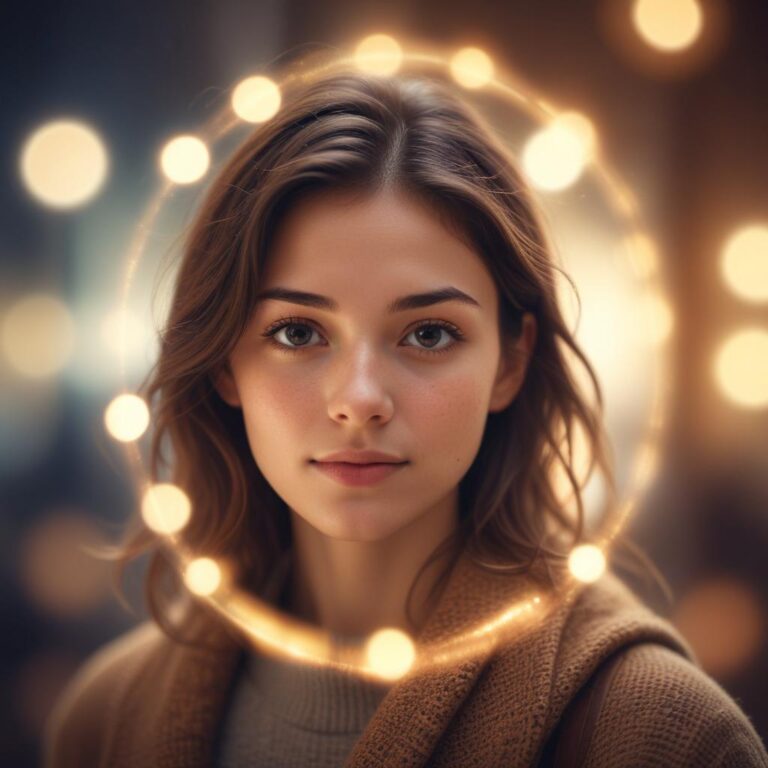
Have you ever wondered why some portrait photos look so professional while others seem ordinary? The secret often lies in the background. When you blur the background of a portrait, something magical happens – your subject suddenly pops out from the photo like they’re stepping right into the room. This effect, called “bokeh” by photographers, makes people look more important and draws all attention to their face and expression. The good news is that you don’t need an expensive camera or fancy lens to achieve this look. With today’s online tools, anyone can create stunning portrait photos with beautifully blurred backgrounds right from their computer or phone. Whether you’re taking family photos, headshots for work, or just want to make your selfies look amazing, learning to blur backgrounds online will completely change how your portraits look.
Why Background Blur Makes Portraits Look Professional
Background blur isn’t just about making things look fancy – it serves real purposes that make your photos much better. When you blur the background, you’re essentially telling viewers exactly where to look. Instead of their eyes wandering around the photo, they focus right on your subject’s face.
Think about it like this: when you’re having a conversation with someone in a crowded room, you naturally focus on their face while everything else becomes less important. Background blur recreates this same feeling in photos. It makes portraits feel more intimate and personal, just like real-life conversations.
Professional photographers spend thousands of dollars on equipment to get this effect naturally. But now, thanks to smart online tools, you can achieve the same results without breaking the bank or carrying heavy camera gear.
Understanding Different Types of Background Blur
| Blur Type | Best For | Natural Look | Difficulty Level | Processing Time |
|---|---|---|---|---|
| Gaussian Blur | Simple portraits with clean edges | Good | Very Easy | Fast |
| Radial Blur | Creating depth and movement | Excellent | Easy | Medium |
| Motion Blur | Dynamic, energetic portraits | Good | Medium | Medium |
| Lens Blur | Realistic camera-like effects | Excellent | Easy | Slow |
| AI Smart Blur | Complex backgrounds and hair | Outstanding | Very Easy | Medium |
The Science Behind Perfect Portrait Blur
What Makes Blur Look Natural
Real camera blur happens when light bounces around inside the lens, creating smooth, gradual transitions. The key to making artificial blur look convincing is understanding how our eyes naturally see the world.
When you look at someone’s face, everything closer and farther away becomes softer. This is called “depth of field,” and it’s what makes some things sharp while others appear blurry. Good background blur software tries to copy this natural effect.
The Psychology of Blur
Blurred backgrounds don’t just look good – they actually affect how people feel about your photos. Studies show that portraits with blurred backgrounds make subjects appear more trustworthy and professional. This is why business headshots and dating profile photos often use this technique.
Method #1: Using Canva’s Background Remover
Getting Started with Canva
Canva has become incredibly popular because it makes professional-looking designs easy for everyone. Their background blur feature works surprisingly well and doesn’t require any special skills.
Here’s how to use it:
- Upload your portrait to Canva
- Click “Edit Image” in the toolbar
- Select “Background Remover” from the menu
- Let Canva automatically detect your subject
- Choose “Blur” instead of completely removing the background
Fine-Tuning Your Results
After Canva processes your image, you can adjust the blur strength. Start with a medium setting and gradually increase it until the background looks soft but not completely unrecognizable.
Pro tip: If Canva misses parts of your subject (like flyaway hair), use the brush tool to manually fix the edges.
When Canva Works Best
Canva’s blur feature performs excellently with:
- Simple backgrounds without too many details
- Clear subject edges where the person stands out
- Good lighting that separates the subject from the background
- Minimal hair flyaways or complex textures
Method #2: Adobe Express for Quick Results
Why Adobe Express Stands Out
Adobe Express brings professional-grade tools to everyday users. Their background blur feature uses advanced algorithms that understand the difference between people and backgrounds better than most free tools.
Step-by-Step Process
- Go to Adobe Express in your web browser
- Upload your portrait photo
- Click “Remove Background” to let AI detect your subject
- Choose “Blur Background” from the options
- Adjust the blur intensity using the slider
- Fine-tune the edges if needed
Advanced Features
Adobe Express offers several blur styles:
- Soft blur: Gentle, natural-looking effect
- Strong blur: Dramatic background separation
- Radial blur: Creates circular motion effects
- Custom blur: Lets you control exactly which parts get blurred
The radial blur option is particularly useful for creating artistic effects that draw attention to your subject’s eyes.
Method #3: Remove.bg with Blur Options
The Power of AI Detection
Remove.bg has revolutionized background editing by using artificial intelligence to understand photos. While it’s famous for removing backgrounds completely, it also offers excellent blur options.
How to Use Remove.bg for Blur
- Visit remove.bg in your browser
- Upload your portrait (up to 5MB for free accounts)
- Wait for automatic processing (usually 5-10 seconds)
- Choose “Edit” instead of downloading
- Select “Blur Background” from the effects menu
- Adjust blur strength to your liking
What Makes Remove.bg Special
Remove.bg excels at handling:
- Complex hair textures and curly hair
- Transparent objects like glasses
- Challenging lighting conditions
- Multiple people in the same photo
The AI has been trained on millions of photos, so it recognizes human shapes and edges better than simpler tools.
Method #4: Fotor’s Portrait Enhancement
Beyond Basic Blur
Fotor approaches portrait editing differently. Instead of just blurring backgrounds, it offers complete portrait enhancement packages that include blur effects along with other improvements.
The Fotor Workflow
- Open Fotor in your web browser
- Choose “Edit a Photo” from the main menu
- Upload your portrait to the editor
- Find “Background Blur” in the effects panel
- Apply the effect and adjust intensity
- Use additional portrait tools if desired
Bonus Portrait Features
While you’re blurring the background, Fotor offers:
- Skin smoothing to reduce blemishes
- Teeth whitening for better smiles
- Eye brightening to make eyes pop
- Color correction for better skin tones
These extra features can turn a good portrait into a great one, but use them sparingly to maintain a natural look.
Method #5: GIMP for Advanced Control
When You Need More Power
GIMP (GNU Image Manipulation Program) is free software that rivals expensive professional tools. While it has a steeper learning curve, it offers complete control over your blur effects.
Basic GIMP Blur Process
- Download and install GIMP (completely free)
- Open your portrait in GIMP
- Use the “Fuzzy Select” tool to select your subject
- Invert the selection to select the background
- Apply “Gaussian Blur” to the selected background
- Adjust blur radius for the perfect effect
Advanced GIMP Techniques
For more realistic results:
- Use layer masks for precise control
- Apply different blur amounts to different distances
- Add lens flare effects for extra realism
- Adjust brightness in blurred areas
GIMP takes longer to learn but gives you professional-level control over every aspect of your blur effect.
Tips for Natural-Looking Background Blur
Understanding Depth and Distance
Real camera blur gets stronger as objects get farther away. To make your artificial blur look natural, consider applying different amounts of blur to different parts of the background.
Objects right behind your subject should be slightly blurred, while things far in the background should be very blurred. This creates a realistic sense of depth.
Avoiding Common Mistakes
Don’t over-blur everything: Some background detail should remain visible Watch the edges: Make sure the transition between sharp and blurred areas looks smooth Keep it consistent: All background elements at the same distance should have the same blur level Preserve important context: Don’t blur away all information about where the photo was taken
Color and Contrast Considerations
Blurred backgrounds often look better when they’re slightly darker or less colorful than your subject. This helps create even more separation and makes your subject stand out.
Consider adjusting the background colors to be more neutral or complementary to your subject’s clothing and skin tone.
Choosing the Right Tool for Your Needs
For Complete Beginners
Start with Canva or Adobe Express. These tools are designed for people who want good results without learning complicated techniques. They work well for social media posts, family photos, and casual portraits.
For Regular Portrait Editing
Remove.bg offers the best balance of quality and ease of use. It handles difficult subjects well and produces professional-looking results quickly.
For Creative Control
Fotor provides a good middle ground between simple tools and professional software. It’s perfect if you want to enhance multiple aspects of your portraits.
For Professional Results
GIMP gives you complete control but requires time to learn. Choose this if you plan to edit many photos or want to develop serious editing skills.
Mobile vs. Desktop Editing
Mobile Advantages
- Convenience: Edit anywhere, anytime
- Touch controls: Natural finger gestures for adjustments
- Instant sharing: Post directly to social media
- Camera integration: Edit photos right after taking them
Desktop Advantages
- Larger screens: Better for detailed work
- More processing power: Handles large files faster
- Precise controls: Mouse and keyboard for exact adjustments
- Multiple windows: Compare before and after easily
Most online tools work well on both mobile and desktop, so choose based on your comfort and needs.
Troubleshooting Common Problems
When Edges Look Fake
If the border between your subject and the blurred background looks obviously artificial:
- Use a softer brush to blend edges manually
- Reduce blur intensity slightly
- Add a subtle glow around your subject
- Check your source photo – better original photos give better results
Handling Hair and Complex Edges
Hair is the biggest challenge in background blur. Here’s how to handle it:
- Use AI-powered tools like Remove.bg when possible
- Work with higher resolution photos for better detail
- Don’t aim for perfection – some imperfection looks more natural
- Consider the viewing size – small social media images hide edge problems
When Blur Looks Unnatural
If your blur effect doesn’t look like real camera blur:
- Vary the blur amount across different background areas
- Keep some areas only slightly blurred for depth
- Maintain some color and contrast in the background
- Study real bokeh photos to understand what looks natural
FAQ Section
Q: Can I blur backgrounds on my phone? A: Yes! Most of the tools mentioned (Canva, Adobe Express, Remove.bg) work great on mobile browsers. There are also dedicated apps like Portrait Mode on iPhone or similar features on Android.
Q: Do I need to pay for good background blur? A: Not necessarily. Remove.bg offers free processing for images up to 5MB. Canva and Adobe Express have free tiers that work well for most users. Only upgrade if you need higher resolution or more features.
Q: How much blur should I use? A: Start with moderate blur where you can still recognize background objects but they don’t distract from your subject. You can always increase it if needed, but too much blur looks fake.
Q: Can I blur backgrounds in group photos? A: Yes, but it’s more challenging. AI tools work best with clear separation between people and backgrounds. If people overlap or are at different distances, you might need to edit each person separately.
Q: Will background blur work with any photo? A: It works best with photos that have clear separation between the subject and background. Photos with good lighting and simple backgrounds give the best results.
Q: How do I make the blur look like it came from an expensive camera? A: Use gradual blur that gets stronger with distance, keep some background detail visible, and avoid perfectly circular blur patterns. Study real bokeh photos to understand the effect.
Q: Can I undo background blur if I don’t like it? A: Most online tools let you adjust or remove effects before downloading. Always save your original photo and work on a copy so you can start over if needed.
Q: What’s the difference between blur and completely removing the background? A: Blur maintains context about where the photo was taken while focusing attention on your subject. Complete removal lets you add new backgrounds but can look less natural for portraits.
Q: How long does it take to blur a background online? A: AI-powered tools like Remove.bg process photos in 5-10 seconds. Manual editing in tools like GIMP might take 10-30 minutes depending on complexity and your skill level.